We have added a new Excel order import module to Planlogi that lets you upload orders into Planlogi from an XLS file. You will find it in the Orders menu.
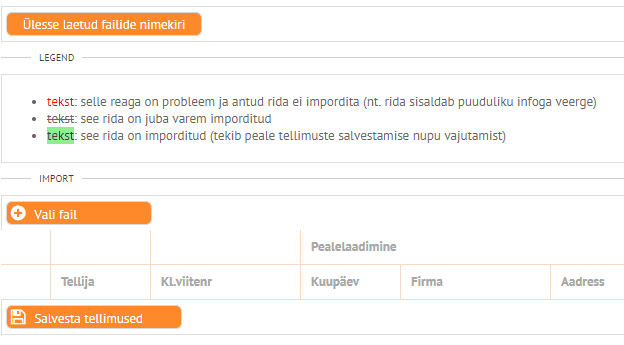
To upload orders, fill in the order template, which you can download here. You can upload as many orders as you need in one file; there is no limit on the number of orders. All mandatory columns in the template (marked in yellow) must be filled in. If needed, we can also agree which columns the Planlogi system reads the information from.
An order with any column left empty is not uploaded and is shown in red.
An order that has already been uploaded before (all its columns are identical to those of a previously uploaded order) is not uploaded and is shown struck through.
After adding the file, you also need to save the orders in the system. Every order in the file that is saved gets an order number in the system and is shown in green.
You can see an overview of uploaded files in the Uploaded files list. Once the order is saved, the file itself is attached to the order in its file container, where you can also open it.
Frequently asked questions
How do I import orders from an Excel file into Planlogi?
The Orders menu has an Excel order import module. Fill in the order template provided and upload the file.
How many orders can I upload at once?
There is no limit on the number of orders in one file. All mandatory columns (marked in yellow) must be filled in.
What happens if a mandatory column is left empty?
That order is not uploaded and is shown in red. An identical order that has already been uploaded is not uploaded again and is shown struck through.
How do I save imported orders in the system?
After adding the file, you need to save the orders. Saved orders get an order number and are shown in green.